
Blocks may be set up manually in the Block Table, using a script, or automatically in a Layout Editor Panel. When a Block is defined in a Layout Editor panel, a new Block is created if one does not already exist.
To complete the definition of a Block, Paths and Bean Settings must be attached to each Block.
Paths describe entry points to the Block. Each Block has one or more Paths associated with it. Sometimes a Turnout must be set a certain way to use a Path; Bean Settings carry that information. Paths and Bean Settings are set up automatically for Blocks defined in a Layout Editor Panel. They can also be set up in a script. There is currently no way to manually enter Paths or Bean Settings. Paths and Bean Settings are not shown in the Block Table, and are mentioned here only for completeness.
For use in automatically running Trains, a Length attribute and a Curvature attribute may optionally be assigned to a Block. These optional attributes are entered manually in this Table. If Trains will not be run automatically through a Block, there is no need to add these attributes.
System Name - The System Name of the Block. There is no functional requirement for a type letter in the System Name of a Block, but by convention we use 'B' for 'Block'. The default implementation is not system-specific, so a system letter of 'I' is appropriate. This leads to system names like "IB201".
User Name - The User Name of the Block. The User Name of a Block created here may be set to any text. Before renaming or deleting a block user name, a check is made to see if the user name is used by a Layout Editor panel. If so, a warning is displayed. For renames, if Yes is selected, the panel references will also be renamed.
Value - This is the string value of whatever object the Block is carrying. Usually, this will either be a message or a Throttle object. If you modify this, it's stored in the Block as a string. There is currently no way to manually add a Throttle object to a Block from the table. More information on Block tracking
Comment - You may enter any text in this field that will help you distinguish this Block from other Blocks, or provide useful notes about its use.
Delete - Click the Delete button in any row to delete the Block in that row from the list of Blocks in the program. You must save your configuration (and any Panels present) to disk to make the deletion permanent. Deletion can not be undone. Caution: Make sure you remove all references to a Block before deleting it. JMRI will show a warning if you haven't done so. Blocks are referenced in the Paths of other Blocks, in some scripts, and in Layout Editor Panels.
Direction - The current direction stored in the Block.
Length (optional) - Displays the length of the Block. Optionally, you may enter the length of the Block here. The length is used for automatic running of trains. If '0.0' is displayed, the length has not yet been entered. The entered length should be the actual length of the Block on the model railroad layout. Length is entered and displayed in either inches or centimeters, depending on which unit is requested at the bottom of the Block Table pane.
Curvature (optional) - Displays the Curvature selected for the track in the Block. Curvature is used for automatic running of trains, and need not be entered if trains will not be run automatically. Curvature, if present, indicates to the computer that it should slow the train as it runs through the Block. If None or Gradual is selected, an automatic train will proceed at normal speed. Tight should be selected if the train should slow down somewhat; Severe should be selected if the train should slow by a maximum amount. If the Block has variable curvature, your selection should be made according to the most limiting part of the Block.
State Shows the current state of the block,
Choose between textual and graphic display in the Display preferences.
Reporter The Reporter assigned to this Block. See Reporters help. Puts the Reporter Value into the Block value.
Use Current? If we consider the scenario whereby we want to track a train around the layout, typically this is achieved via the use of Memory objects associated with Blocks. Until the train is known, we have nothing to track. Typically, we can manually type the train ID into a pane and then this is tracked around the layout based on Block occupancy. If, however, we have an attached device that can provide us with the train ID, such as an RFID reader, we no longer need to manually type the train ID in - the reader does this for us. In essence, the reader is little more than an 'intelligent' sensor - not only can it sense that 'something' is there, it can tell us which something it is.
Now to the implementation. A Sensor is purely ACTIVE or INACTIVE - i.e. something is there or it isn't. A Reporter, however, can tell us one of the following:
Permissive The Permissive option is used to identify Blocks that can be entered while the Block is occupied. This is used with certain automation tools and logic, to help determine if a train can enter an occupied Block and what Aspect should be displayed on a Signal Mast.
Block Speed The Block Speed is used with certain automation tools and logic, to help determine the speed at which a train can be set through the Block. It is also used by the Signal Mast Logic for determining which Aspect should be displayed in a signal path.
In the drop down list, you are presented a set of named fixed speeds that have been
predefined in the signalSpeed.xml file, in addition to a global option.
It is also possible to enter in a numerical value to represent a speed.
The global value is set via the Speeds menu.
Ghostsince 5.11.2 The Ghost option is used by Dispatcher to simulate block occupancy for blocks that don't have real occupancy sensors. This option can be used for very short blocks. It can also be used when turnouts physically have the same block as the throat track segment. By using a ghost block for the turnout, there are now block boundaries for signal masts and signal mast logic.
A ghost block requires an internal sensor to simulate the occupancy. The sensor is only used by Dispatcher. Logix, LogixNG or scripting must not change the sensor state.
Consecutive ghost blocks will result in errors when a transit is run. There must be at least one real block between ghost blocks. Note: This means ghost blocks cannot be used for both halves of crossovers. A ghost block could be used for the recommended third block for double crossovers.
Along the bottom of the Block Table pane are buttons that control its operation.
Push this button to create a new Block.
Choose between showing the Block Length (measured in real world units on the layout) in
either inches or centimeters.
Existing values will be converted.
To add a new Block, see Adding Blocks.
To check or change the properties of a Block, click the Edit button to the right of a Block entry in the Block Table, see Edit Block.
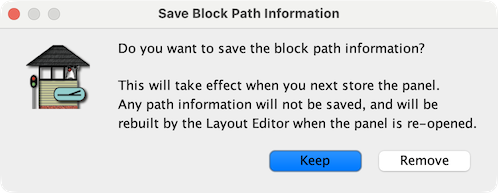
When blocks have been assigned to LayoutEditor tracks, Paths are created to define the routes between blocks. Sometimes a complex block change results in broken paths. Use Paths ⇒ Delete Paths… to delete the paths which will be rebuild when the layout data xml file is loaded after a PanelPro startup. A dialog is displayed with details and requires confirmation by clicking on Remove.
The Normal speed from the signalSpeeds.xml file is the default global speed. Select Speeds ⇒ Defaults… to change the Global block speed. Choose one of the listed speeds. The blocks that use the Default speed will automatically change to the new value.
The current block values are saved in the blockvalues.xml file during PanelPro shutdown. The Values menu has three options that are used when the block values are automatically loaded after the layout data xml file has been loaded. Note: If track power is not on, the choices are ignored and all block values will be loaded.
since 5.15.1The Reload Block Values menu item provides the ability to reload the block values on demand. This can be useful when the track power was not on during PanelPro startup.
Using Blocks with Layout Editor
Back to the Blocks Help page